ERP migration
Field-level mapping, validation, and rollback between Integra ERP and Acumatica. We move data and schema; workflows are rebuilt natively in Acumatica.
Integra ERP
Source
Acumatica
Destination

Compatibility
14 of 14
objects map 1:1 between Integra ERP and Acumatica.
Complexity
BStandard
Timeline
3–5 business days
Overview
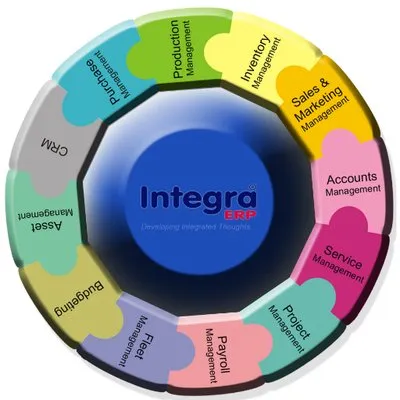
Integra ERP is a mid-market ERP solution published by Centurygate Software Solutions that targets small to medium businesses across manufacturing, distribution, retail, and professional services. It covers financial operations, accounting, payroll, business intelligence, CRM, eBusiness, and supply chain modules with both cloud and on-premise deployment options. Acumatica is a cloud-native ERP that uses consumption-based pricing tied to transaction volume rather than per-user licensing, giving organizations unlimited user access regardless of tier. The platform organizes data around Business Accounts (replacing Integra's Customer and Vendor records), Inventory Items (with Warehouse-specific stocking locations), GL Accounts with Subaccount scoping for multi-entity or branch-level reporting, and Projects for project-based billing and cost tracking. FlitStack AI extracts data from Integra ERP via its database export and API endpoints, transforms proprietary field names and pick-list values to match Acumatica's schema, and loads records using Acumatica's Import by Scenario and REST API endpoints. We preserve original create dates, transaction timestamps, and owner assignments where the destination field types support them. Workflows, automation rules, scheduled jobs, and custom screen modifications in Integra ERP do not migrate—they require manual rebuild using Acumatica's Screen Customization framework or third-party add-ins. Reports and dashboards require reconstruction using Acumatica's Report Designer or integrated BI tools.
Every standard and custom field arrives verified.
AI proposes the map; you confirm before any record moves.
Parent–child, lookups, and ownership stay linked.
Calls, emails, meetings — with original timestamps.
Documents, uploads, and inline notes move with the record.
Why teams make this switch
Leaving
What's pushing teams away
Choosing
What's pulling them in
Object mapping
Each row shows how a Integra ERP object lands in Acumatica, including any object-level transformations, lookup resolution, or schema-design dependencies.
Typical mapping — final map is confirmed during the sample migration step.
Integra ERP
Customer
Acumatica
Business Account (Customer)
1:1Integra Customer records map directly to Acumatica Business Accounts. Address information stored on the Integra Customer record becomes the primary Location on the Acumatica Business Account. Additional Integra address records map to secondary Location records under the same Business Account.
Integra ERP
Vendor
Acumatica
Vendor
1:1Integra Vendor records map 1:1 to Acumatica Vendor entities. Payment terms, bank details, and tax registration fields transfer to equivalent Acumatica Vendor fields. Remit-To addresses on Integra map to a separate Vendor Location record in Acumatica if the vendor accepts payments at a different address than their main location.
Integra ERP
GL Account
Acumatica
Account (GL Account)
1:1Integra GL Account codes map to Acumatica Account records. Where Integra stores a combined account-plus-department code, FlitStack AI splits the value into the Account field and a corresponding Subaccount. Accounts flagged as header-only in Integra mark the Acumatica Account with Allow Posting = false.
Integra ERP
Department / Cost Center
Acumatica
Subaccount
1:1Integra's Department or Cost Center dimension maps to an Acumatica Subaccount entity. The Subaccount is attached to the appropriate Segments defined in Acumatica's Chart of Accounts configuration (e.g., Branch, Division, or Project). Integra setups using free-text department names require validation against Acumatica's Subaccount code format before migration.
Integra ERP
Inventory Item
Acumatica
Inventory Item
1:1Integra Inventory Items map to Acumatica Stock Items or Non-Stock Items depending on the Integra item type flag. Unit of Measure conversions defined in Integra transfer to Acumatica's UOM classes and conversion rules. Default warehouse assignment from Integra becomes the primary Warehouse ID on the Acumatica item.
Integra ERP
Warehouse / Location
Acumatica
Warehouse
1:1Integra Warehouse records map to Acumatica Warehouse entities. Address information, site code, and active or inactive status transfer directly as fields on the Warehouse record. Lead Times, Replenishment Settings, and Shipping Terms on the Integra warehouse default to Acumatica system values during import and can be customized in the Warehouse configuration screen after migration completes.
Integra ERP
Open AR Invoice
Acumatica
AR Invoice
1:1Integra open AR invoices map to Acumatica AR Invoice documents. The customer reference number maps to the Invoice Nbr field. Line items map to invoice detail lines with inventory ID and quantity. Unpaid invoices with past-due dates carry their original due dates into Acumatica's Terms field.
Integra ERP
Open AP Invoice
Acumatica
AP Invoice
1:1Integra open AP invoices map to Acumatica AP Invoice documents. Vendor reference numbers and invoice dates transfer to equivalent fields in the Acumatica AP Invoice header. Prepayments tracked as separate records in Integra map to Prepayment applications in Acumatica rather than appearing as individual line items on the invoice.
Integra ERP
Employee
Acumatica
Employee
1:1Integra Employee records map to Acumatica Employee entities with name, email, department, and employment status fields. Active employee status maps directly; terminated employees are flagged with their termination date. Integra's employee ID becomes the Acumatica Employee ID field for payroll and expense linking.
Integra ERP
Sales Order (Open)
Acumatica
Sales Order
1:1Open Sales Orders in Integra map to Acumatica Sales Orders with order number, date, customer, line items, quantities, and prices. Order status (open, partially shipped, completed) transfers to Acumatica's status field. Pending shipments remain in Open status for post-migration processing.
Integra ERP
Purchase Order (Open)
Acumatica
Purchase Order
1:1Open Purchase Orders in Integra transfer to Acumatica Purchase Orders with vendor, line items, quantities, and expected delivery dates. Drop-ship and special order flags map to equivalent Acumatica Purchase Order types. Receipts pending against Integra POs create open expectations in Acumatica's receiving workflow.
Integra ERP
Bill of Materials
Acumatica
Bill of Materials (BOM)
1:1Integra BOMs transfer to Acumatica Manufacturing BOMs with parent item, component lines, quantities per assembly, and bill/operation steps. Multi-level BOMs in Integra become nested BOM structures in Acumatica. Phantom BOM flags map to Phantom Bill of Materials type in Acumatica.
Integra ERP
Custom Field (User-Defined)
Acumatica
Custom Field (Usr Prefix)
1:1Integra user-defined fields on any entity require a custom field with the Usr prefix in Acumatica. Field data types are matched: text fields to string, numeric fields to decimal or integer, date fields to date/datetime. Custom field visibility and access rights are set in Acumatica's Customization Project after migration completes.
Integra ERP
Attachment / Document
Acumatica
Note / Attachment
1:1File attachments stored against Integra records are downloaded and re-uploaded to the corresponding Acumatica entity as Notes or File attachments. File size limits and supported formats follow Acumatica's attachment configuration. Inline images in notes are extracted and rehosted as separate file references.
| Integra ERP | Acumatica | Compatibility | |
|---|---|---|---|
| Customer | Business Account (Customer)1:1 | Fully supported | |
| Vendor | Vendor1:1 | Fully supported | |
| GL Account | Account (GL Account)1:1 | Fully supported | |
| Department / Cost Center | Subaccount1:1 | Fully supported | |
| Inventory Item | Inventory Item1:1 | Fully supported | |
| Warehouse / Location | Warehouse1:1 | Fully supported | |
| Open AR Invoice | AR Invoice1:1 | Fully supported | |
| Open AP Invoice | AP Invoice1:1 | Fully supported | |
| Employee | Employee1:1 | Fully supported | |
| Sales Order (Open) | Sales Order1:1 | Fully supported | |
| Purchase Order (Open) | Purchase Order1:1 | Fully supported | |
| Bill of Materials | Bill of Materials (BOM)1:1 | Fully supported | |
| Custom Field (User-Defined) | Custom Field (Usr Prefix)1:1 | Fully supported | |
| Attachment / Document | Note / Attachment1:1 | Fully supported |
Gotchas + challenges
Platform-specific issues from each side, plus the pair-specific challenges that don't show up on either platform's page on its own.
Integra ERP gotchas
No public API for automated export
On-premise database format is proprietary
No documented data portability feature
Perpetual license does not include migration support
Acumatica gotchas
API user licenses cap concurrent sessions and request throughput
Multi-tenant filtering requires CompanyID awareness
Custom fields require separate discovery before field mapping
Notes and attachments use a separate linked table structure
Implementation timelines frequently run 3–9 months end-to-end
Pair-specific challenges
Migration approach
Export Integra ERP data and audit source schema
FlitStack AI connects to Integra ERP's database export or API endpoints to extract all master data, transaction records, and custom fields. We produce a data dictionary mapping Integra's entity names and field IDs to their current values. This audit identifies non-standard GL codes, orphaned records (customers with no transactions), duplicate entries, and custom field definitions that require Acumatica custom field creation.
Configure Acumatica Chart of Accounts and Subaccount segments
Before any data loads, FlitStack AI creates the Account records in Acumatica matching the Integra chart of accounts structure. If Integra uses a combined account-department code, we create the corresponding Subaccount segments with the correct scope (Branch, Division, Project, or custom). We validate the account code format against Acumatica's import expectations and resolve any non-standard naming patterns before the accounts are committed.
Migrate master data in dependency order
Master data migrates in a sequence that respects referential integrity: Warehouses first, then GL Accounts and Subaccounts, then Business Accounts (Customers) and Vendors, then Inventory Items and Item-Warehouse availability records, then Employees. Each entity is validated against the Acumatica schema before commit. Custom fields on each entity are created in Acumatica's Customization Project immediately before the corresponding entity import so no data is rejected for missing destination fields.
Reconcile open transaction batch against GL trial balance
Open AR and AP invoices are extracted as a separate batch and reconciled against the Integra trial balance before loading. FlitStack AI generates a reconciliation report showing the sum of open transactions per AR/AP GL account versus the trial balance figure. Any discrepancy is resolved against Integra before the batch commits. Once reconciled, open invoices post to the corresponding AR/AP accounts with their original dates and aging preserved.
Run sample migration and field-level diff
A representative slice of records (typically 200–500 across Customers, Vendors, Items, and transactions) migrates first against a test Acumatica tenant. We generate a field-level diff comparing source values against destination values for every mapped field. You review the diff to confirm Subaccount mapping is correct, GL account assignments are accurate, and inventory item-warehouse links reflect the expected stocking locations. Approval of the sample unlocks the full migration.
Execute full migration with delta-pickup and audit log
Full migration runs against the production Acumatica tenant with a 48-hour delta-pickup window capturing any records created or modified in Integra ERP during cutover. FlitStack AI produces a complete audit log of every record written, its source ID, and the timestamp. If reconciliation fails or unexpected data quality issues surface post-migration, one-click rollback reverts the Acumatica tenant to its pre-migration state so the issue can be resolved and the migration re-run.
Platform deep dives
Integra ERP
Source
Strengths
Weaknesses
Acumatica
Destination
Strengths
Weaknesses
Complexity grading
Standard ERP migration. 2 of 8 objects need a mapping; the rest are 1:1.
Overall complexity
Standard migration
Derived from compatibility, mapping clarity, API constraints, and data volume across Integra ERP and Acumatica.
Object compatibility
2 of 8 objects need a mapping; the rest are 1:1.
Field mapping clarity
Field mapping is derived from defaults — final spec confirmed during the sample migration.
Timeline complexity
8-object category — typical timelines run 2–7 days end-to-end.
API constraints
Integra ERP: Not publicly documented.
Data volume sensitivity
Integra ERP doesn't expose a bulk API — REST + parallelization used for high-volume runs.
Estimator
Rule-based pricing — no per-record fees, no manual quotes. Migrations over 2M records are scoped individually.
Step 1
Pick a category, then your source and destination platforms.
Category
FAQ
Answers to the questions buyers ask most during Integra ERP to Acumatica migration scoping. Not seeing yours? Book a call.
Walk through your Integra ERP to Acumatica migration with a real engineer — 30 minutes, free, written quote within 24 hours.
Book a free 30 minute consultationAdjacent paths
Other ways to leave Integra ERP
Other ways to arrive at Acumatica








Popular ERP migrations
Ready when you are
Tell us record counts and timeline. We'll come back with a written quote inside 1 business day — no commitment, no sales pitch.





